
JL Setup
What is JL?
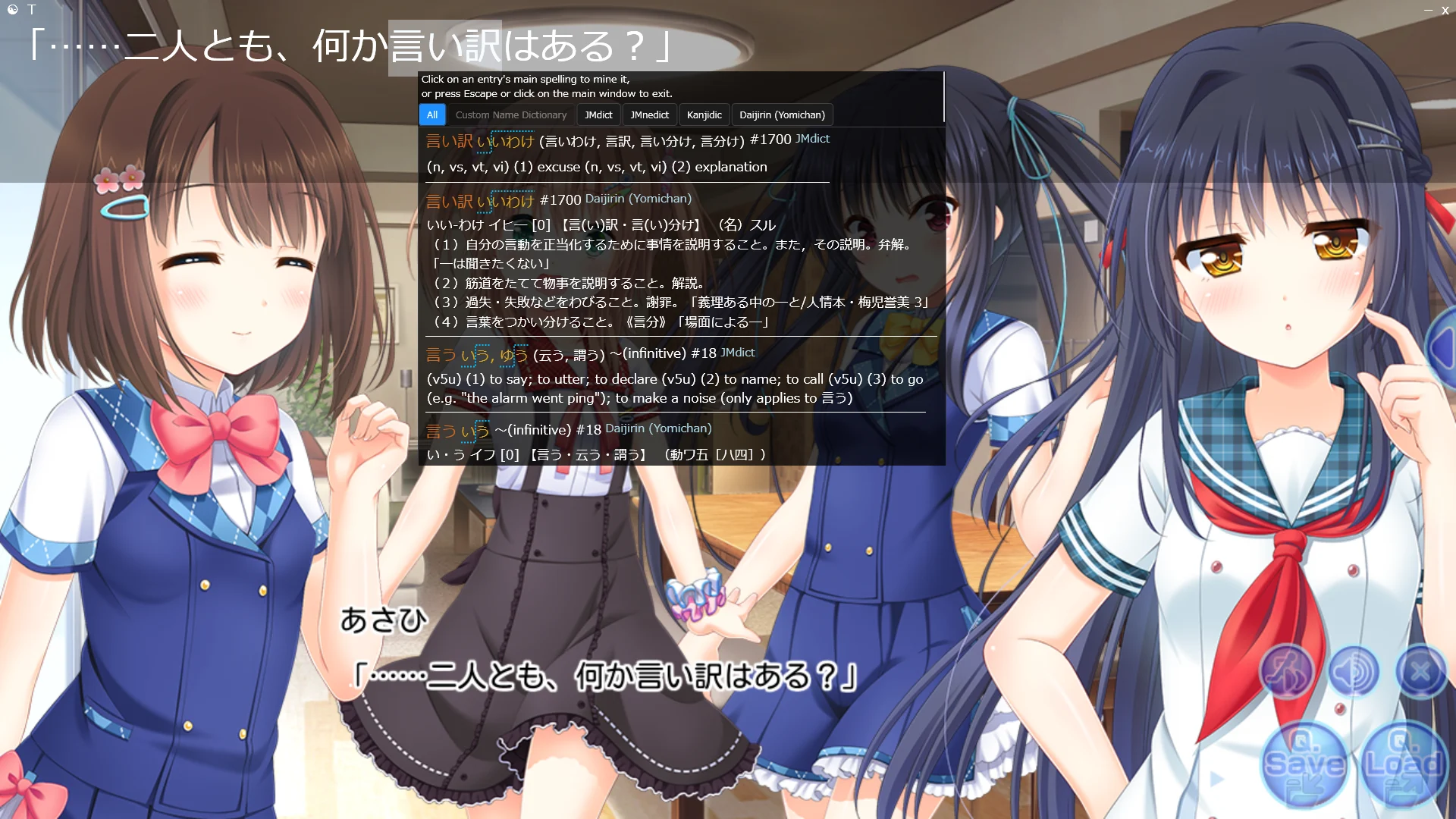
JL is a powerful application that helps you read Japanese content by providing instant dictionary lookups~ It's main advantage is it's customizable semitransparent overlay, which makes it possible to read in fullscreen and to have your lookups above non-browser applications. JL can be used for games, VNs, anime and anywhere where text is copyable due to websocket and clipboard support
Download
Getting everything downloaded and installed!
Download JL and our config file which only adds hotkeys to the app that will be used to configure it further and make your experience smoother
Download JL (Windows) and extract it using Winrar or 7zip! ᗒ⩊ᗕ
Open JL's folder → "Config" folder, and replace the existing "Configs.sqlite"
Settings
Press Alt + L to open Preferences or right click the semi-transparent window!
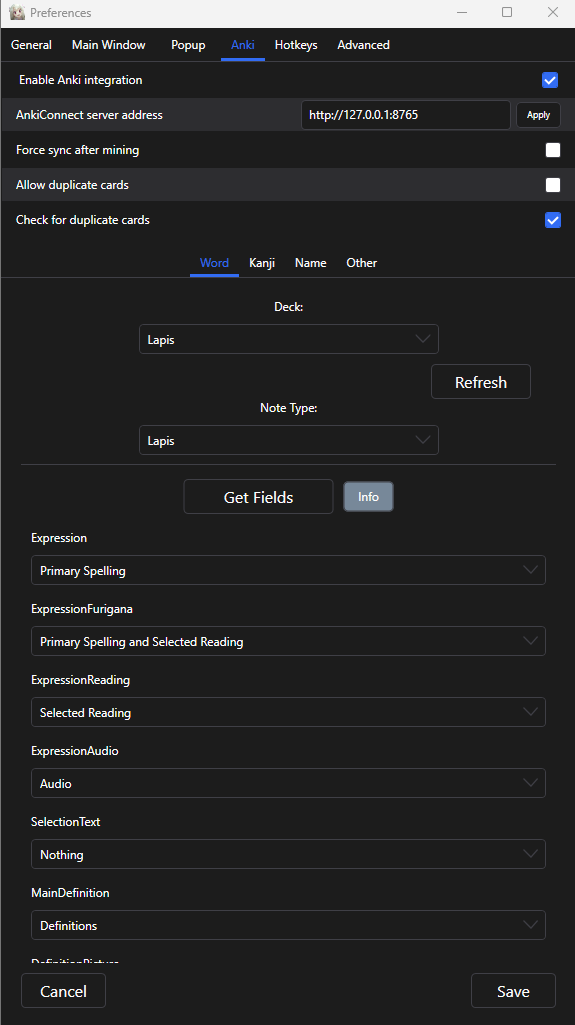
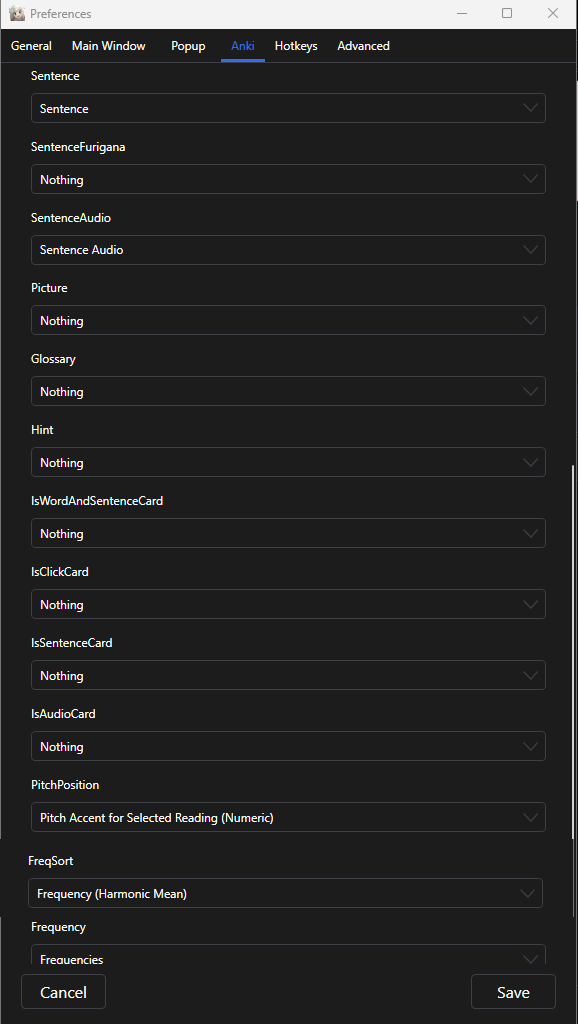
Anki Integration & Hotkeys
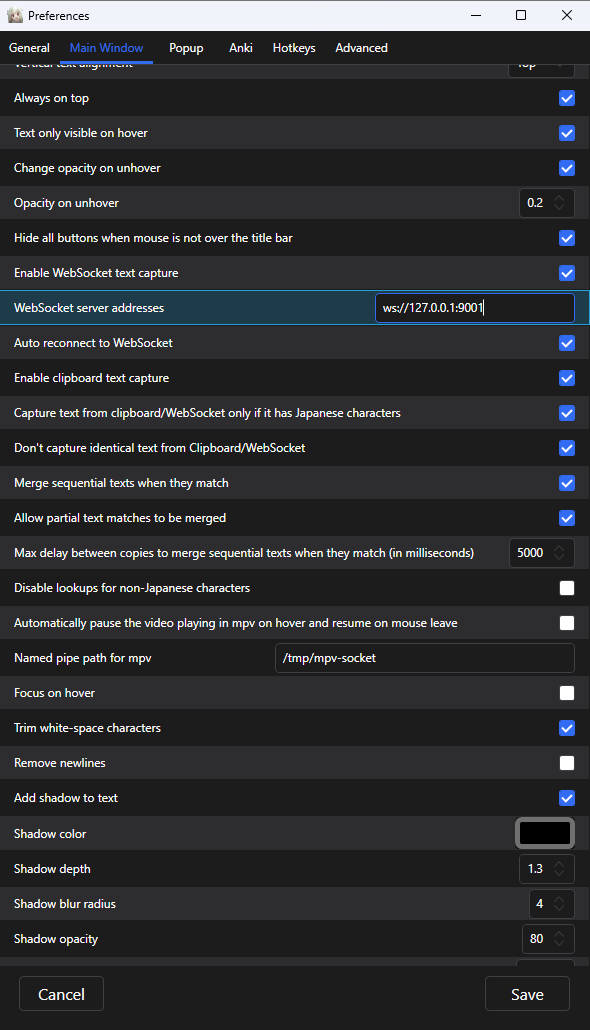
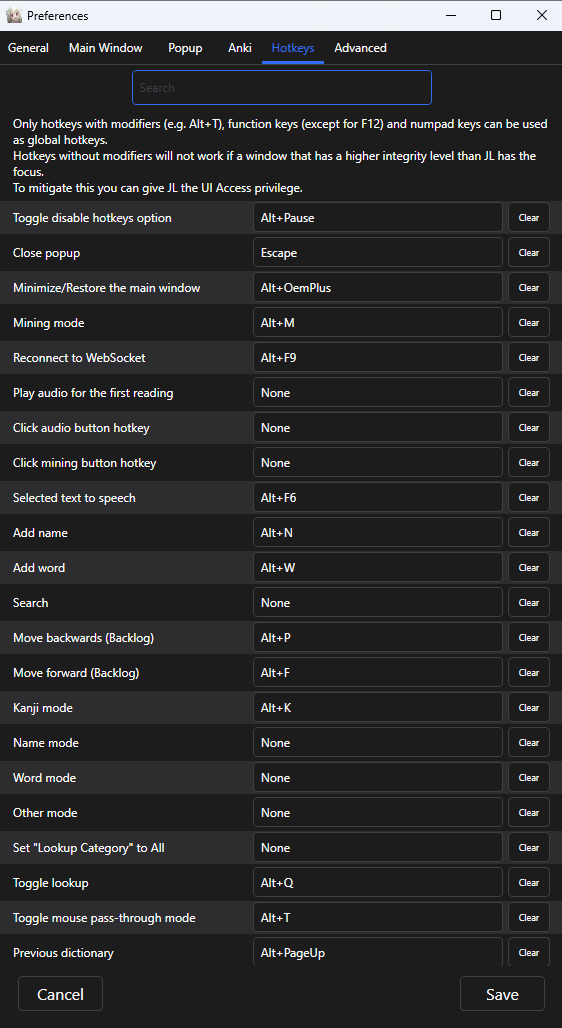
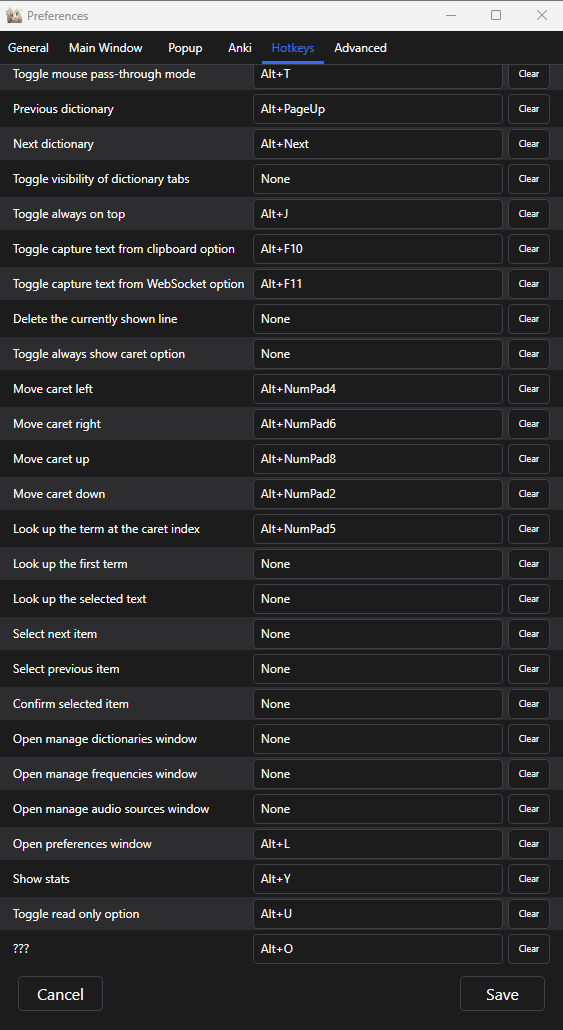
Why: ws://localhost:6677 is already commonly used by other applications, like texthooker interfaces. To use a texthooker ui in tandem with JL, two websockets will be needed. We considered that changing JL's websocket would be more convenient
Default Clipboard: It can also be used if preferred
Recommended Dictionaries
The most important dictionaries for beginners
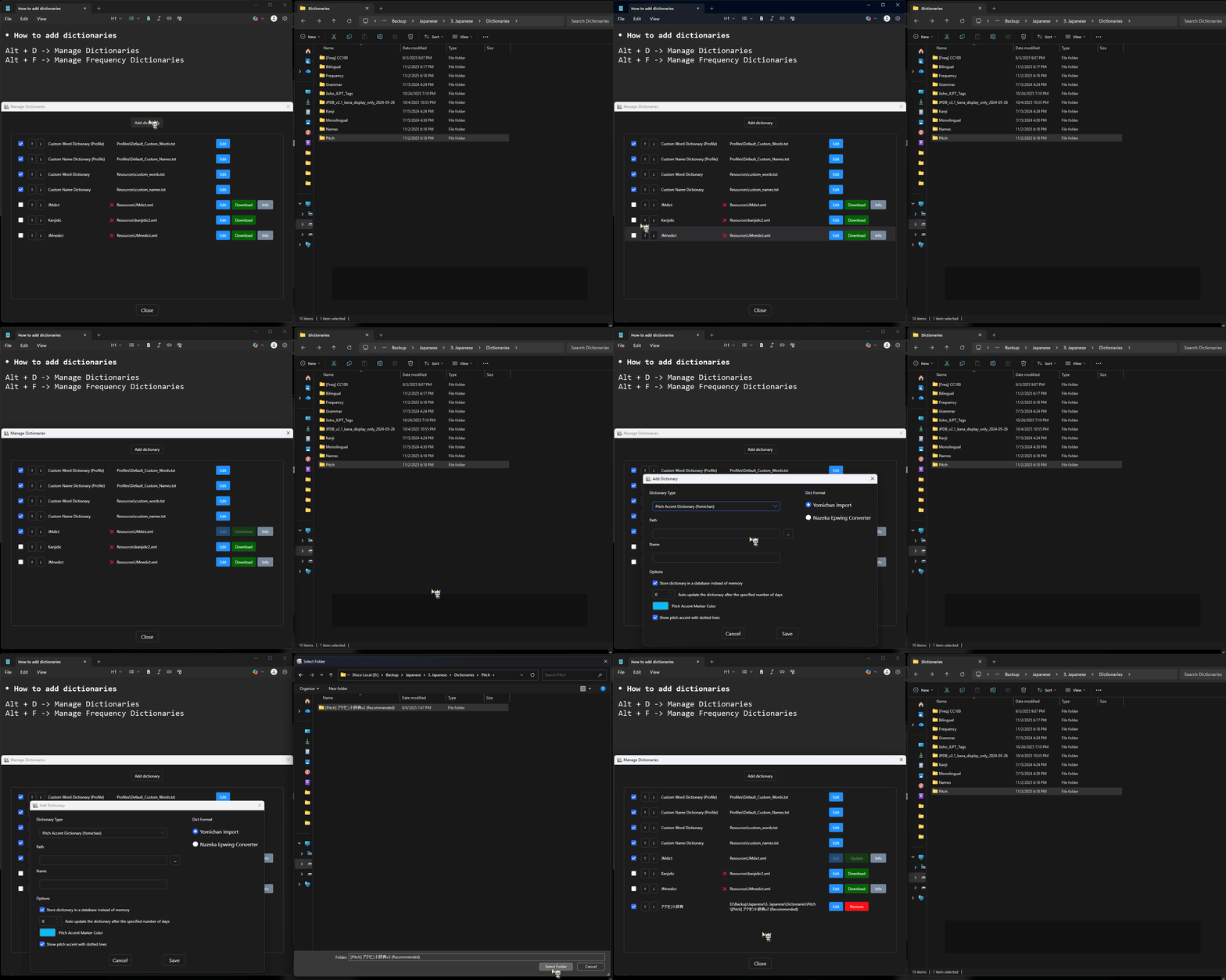
Click on the GIF to learn how to add dictionaries or click on any of the cards to see the list of recommended ones!
Definition
Bilingual definition dictionaries
Frequency
Frequency dictionaries such as: JBPD and CC100
Others
Pitch accent, grammar, names dictionaries, etc.
Definition
Bilingual definition dictionaries
Frequency
Frequency dictionaries such as: JBPD and CC100
Others
Pitch accent, grammar, names dictionaries, etc.

Check supported dictionaries by checking the official documentation here
JL & Textractor
Essential tools for extracting and translating Japanese text from Visual Novels
Skip this step if you are using Agent
Most Used Text Hooker for VNs
Textractor is an open source tool that hooks into Visual Novel processes to extract Japanese text from the game, being the staple texthooker since its release. Download Textractor and the websocket extensions to get started!
x86 version of the program and the websockets will be better most of the time, but in case a game doesn't support it, you can use the x64 version instead.
Downloading two websockets is recommended for using JL together with RenjiX Texthooker-ui or Kizuna if you would like to track your reading through them instead of JL's native tracker

Setting the Extensions for Textractor
Downloading extensions to optimize the extraction of text!
Go to "Extensions" and remove all pre-added extensions by right-clicking and selecting "Remove Extension"
Right click again and select "Add Extension".
From your Downloads folder opened in another File Explorer tab, move the downloaded and extracted websockets to the Textractor folder that just opened, the file names for the websockets being: textractor_websocket_x86.xdll and TextractorSender-JL.x86.xdll
Then, add the extensions in this order:
- Remove Repeated Characters
- Remove Repeated Phrases
- Remove Repeated Phrases 2
- Remove 30 Repeated Sentences
- Textractor_websocket_x86
- TextractorSender-JL.x86
- Copy to Clipboard
Attaching and Selecting a Hook
Hook attachment!
Launch your Visual Novel first, then go to a dialogue screen
In Textractor, click "Attach" and select your Visual Novel process from the list
Then, advance once in the dialogues of your game to let textractor identify more hooks and list all available hooks
Scroll through the hooks until you find the one that matches the text from the dialogue screen and is updating once you advance the dialogues
Texthooker UI (Optional)
If you would like to track your reading through Kizuna or other texthooker-ui pages instead of JL's native tracker, follow the steps below:
Go to the Renji's texthooker UI page or Kizuna's page
Click in the red plug icon on the top right of your screen. If it turns green, it succesfully connected to Textractor's websocket and you can hit the "Play" button!
Advance the dialogues in your VN and confirm if the text is updating in the texthooker UI.
Notice the text will also appear in JL's window, this means you are all set to use JL and read~ (≧ᗜ≦)
Immersion Tips
If you encounter a word you dont immediately know the meaning of in your immersion, it's important to make sure you give yourself a second or two to guess the meaning from the context the word appears in. This second of struggle facilitates learning and you should be weary of falling into the habit of immediately looking up a word you dont know before allowing that process to happen.
Setup Complete!
You've successfully configured JL! Now you're ready to start mining sentences and building your Japanese vocabulary.
Continue to Learning Guide
This page was made in collaboration with Akira